Summary:
I tried three different ways to set up Google Analytics for my Website and connected it to WordPress. The first approach was using a WordPress plugin, which was the easiest one to start with. I searched for a GA4 plugin inside the WordPress dashboard, installed it, and just pasted the Measurement ID that I copied from my Google Analytics account. The second method I tried was adding the tracking code manually. I logged into my Google Analytics account, created a GA4 property, copied the full tracking script, and then went to my WordPress dashboard < Appearance < Theme File Editor < header.php. I pasted the code right before the closing <head> tag. The third method was through Google Tag Manager. I created an account there, added a new tag for GA4 configuration, inserted the Tag Manager code into my website’s header, and published the container.
Intro
If you are reading this blog, there is a high chance you recently created a website and are trying to set up Google Analytics, but something feels confusing or not working properly. I faced the same situation while setting up Google Analytics for our new WordPress website, livegodigital.com, which I created to help users and readers.
At the start, I made multiple mistakes, confused the different Analytics options, and even thought Analytics was not working at all. This blog is based on my real experience. I am sharing what went wrong, why it happened, and how I fixed everything step by step in a simple way.
What is Google Analytics, and why do you need it?
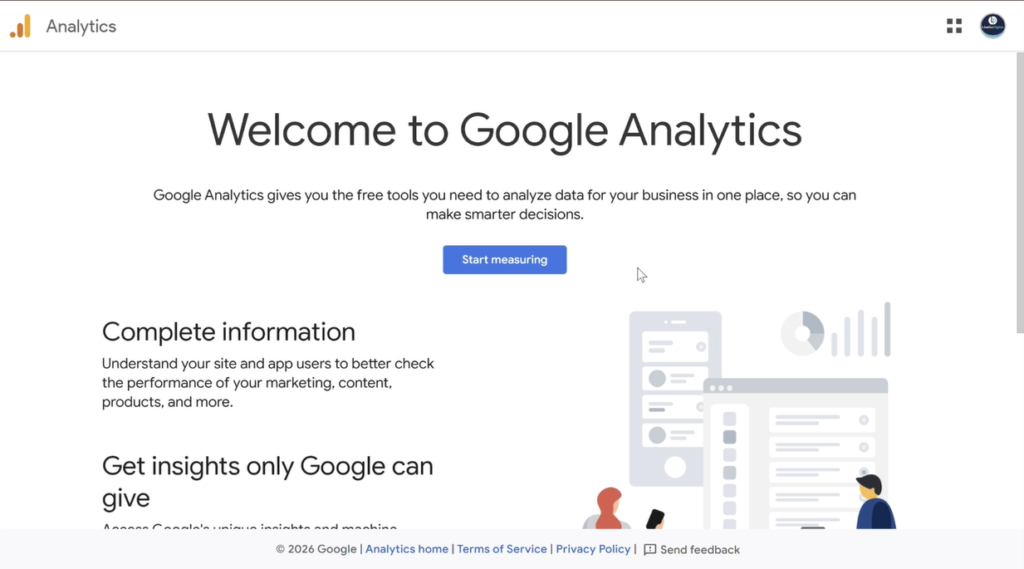
Google Analytics is a free tool by Google that helps you understand what is happening on your website. It shows monthly, yearly, daily traffic, traffic demographics, how many visitors are clicking, which pages they are reading, where the traffic is coming from, and what devices people are using.
I needed Google Analytics because I wanted to check:
- Whether people are visiting my website or not
- Which pages are getting traffic
- If Google search is sending users
- Whether mobile users are accessing the site properly
In the beginning, this data did not appear instantly, which created confusion and panic. I assumed something was broken, but that was not the case
How to Create Google Analytics Account and get the measurement ID?
Since you know what Google Analytics is, let’s understand what role a Google Analytics account plays. It is the place where all your website visitor data is stored, like how many people visited, which pages they viewed, where the traffic came from, and how long the users stayed.
You create this account using your Gmail on Google Analytics. After creating the account, you connect your website to it, and then you receive the Measurement ID. This ID usually starts with “G-”. When you add this Measurement ID to your website, Google understands where to send the tracking data.
In simple language, the account is where you see the data, and the Measurement ID is the tracking code that connects your website to Google Analytics.
Different Ways I Connected Google Analytics to WordPress
To experiment, I connected Google Analytics using different methods. All of them showed data correctly when set up. Here are the methods I followed.
Method 1: Connecting Google Analytics to WordPress Using a Plugin
When I first connected Google Analytics to my WordPress website, I used a plugin because it felt safer and easier for a beginner. A Google Analytics plugin allows you to connect your website to GA4 without touching any code. You only need the GA4 Measurement ID, and the plugin handles the tracking code placement automatically. This method is ideal for new WordPress users, but the downside is that many plugins show too many settings, which can confuse you and sometimes lead to duplicate tracking if you are not careful.
Steps I followed:
- Logged in to my WordPress dashboard.
- Installed a Google Analytics plugin (for example, Site Kit or any GA4-compatible plugin).
- Opened Google Analytics and copied my GA4 Measurement ID (starts with G-).
- Pasted the Measurement ID into the plugin settings.
- Saved the changes and clear cache.
Next, I opened Google Analytics and checked the real-time report to confirm the data was showing.
Pros: Beginner-friendly, no coding needed
Cons: Too many options may cause confusion or duplicate setup
Method 2: Adding the Google Analytics Tracking Code Manually
After facing confusion with plugins, I also attempted to add the Google Analytics tracking code manually. This method involves copying the GA4 tracking script and pasting it into the WordPress website header. It is a clean and direct way to connect Google Analytics to WordPress and works well if done correctly. However, even a small mistake like pasting the code in the wrong place or adding it twice can cause tracking issues.
Steps I followed:
- Logged in to Google Analytics and opened my GA4 property.
- Went to Admin < Data Streams < Web.
- Copied the complete GA4 tracking code.
- Opened WordPress dashboard.
- Went to Appearance <Theme File Editor < Theme header.php
- Added the code inside the <head> section using a header plugin or theme file.
- Saved changes and refreshed the website.
- Checked real-time data in Google Analytics to verify tracking.
Pros: Lightweight and clean setup
Cons: One wrong paste can break tracking or create errors
Method 3: Using WordPress Theme Options or Google Tag
Some WordPress themes and Google tools support Google Analytics integration directly through Google Tag or built-in theme options. I tested this method as well, and it worked fine once I confirmed that the tracking code was not added elsewhere. This approach gives centralized control, but it can be easy to forget that Analytics is already connected, leading to duplicate tracking if you later install a plugin or add code manually.
Steps :
- Opened WordPress theme settings or Google Tag configuration.
- Entered the GA4 Measurement ID in the Analytics or tracking field.
- Saved the changes.
- Ensured no other Analytics plugin or manual code was active.
- Verified tracking using Google Analytics real-time report.
Pros: Centralized and clean control
Cons: Easy to forget it’s already active and add tracking again
Common Mistakes People Make While Setting Up Google Analytics
While setting up Analytics for livegodigital.com, I made several mistakes that many beginners usually make.
Creating Multiple Analytics Properties
I did not clearly understand the difference between an Analytics account, property, and data stream. Due to this, I created 2–3 different Analytics codes for the same website.
Using the Wrong Google Email ID
At one point, I was logged into Analytics using one Google email, but my WordPress plugin was connected with another email ID. Because of this mismatch, no data was visible.
Confusion Between GA4 and Old Analytics
Most blogs or vlogs usually discuss older Google Analytics like GA3. However, Google has shifted to GA4. I was searching for tracking IDs that no longer exist, which added to the confusion.
Thinking Analytics Was Not Working
Analytics does not show data immediately. I kept checking the dashboard again and again and assumed it was not connected properly.
Installing Tracking Code Incorrectly
Due to repeated attempts, I ended up adding the tracking code in multiple places — via plugin, manually, and through theme options.
Not Checking Real-Time Data
Instead of checking the real-time report, I kept opening standard reports, which take time to populate.
How I Fixed Common Google Analytics Connection Issues?
To fix the common Google Analytics connection issues, I stopped making any further changes and reviewed the setup carefully.
First, I logged out of all Google accounts and logged in using the correct email ID. Then I selected one GA4 property and removed the extra ones.
After that:
- I removed duplicate tracking codes
- Kept only one active Analytics connection
- Opened Google Analytics real-time section
- Opened my website in another browser tab
When you see one active user in real-time Analytics, then it’s finally working.
Important Things New Website Owners Should Remember
Before starting over, keep these points in mind:
- Analytics data takes time to appear
- One website should have one Analytics property
- Always use the same Google email ID
- Real-time data helps confirm setup
- Avoid adding tracking codes in multiple places
Most mistakes happen due to hurry and confusion. Making mistakes while setting up Google Analytics is normal, especially for new website owners. I made several errors myself while working on livegodigital, but all of them were fixable.
Conclusion
If you are unable to connect Google Analytics to your WordPress website or do not see any data after setup, the issue is usually caused by beginner-level configuration mistakes rather than a real technical problem. This usually happens when you use the wrong Google email ID, or multiple GA4 properties or tracking codes are created for the same site, or the GA4 tracking code is added in more than one place.
The problem can be fixed by selecting the correct GA4 property, deleting duplicate accounts, removing tracking codes, using the hosting-registered Google account everywhere, and checking the real-time report to validate the connection. Once these basics are verified, Google Analytics usually starts showing data without requiring any re-installation. If you still face any issues, comment below or reach out to us, and we will help you.